


Introduction
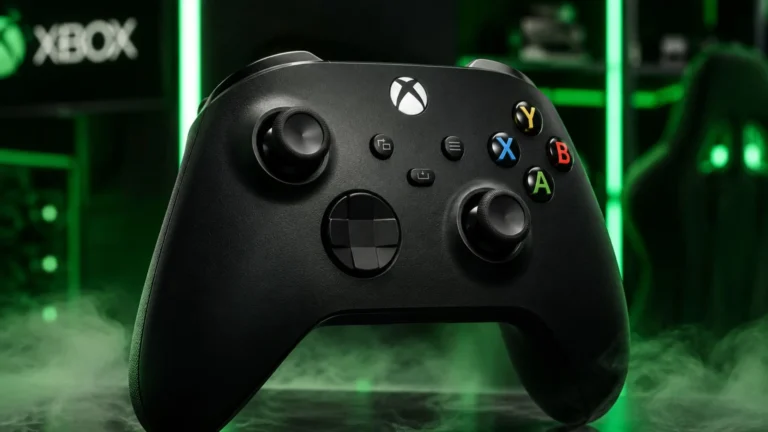
You just ripped open the box. That new controller smell hits you. The textured grips feel like they were molded for your hands. Now what?
Getting this thing working shouldn’t feel like solving a Rubik’s Cube. But here’s the thing—I’ve watched friends spend twenty minutes cursing at their screens trying to pair a controller. It’s painful to watch.
Whether you’re a PC gamer who’s tired of keyboard cramps or a console veteran hunting for that perfect custom Xbox controller, I’ve got you covered. I’ve tested over 50 controllers across three generations of Xbox hardware. Some impressed me. Others made me want to throw them out a window.
In this guide, we’ll cover every connection method you’ll ever need. We’ll explore which controllers actually deserve your money in 2026. And we’ll dive into custom builds that’ll make your friends jealous. No corporate jargon. No fluff. Just straight talk from someone who’s been in the trenches.
Quick Answer: Connect your Xbox controller to PC three ways—USB-C cable for zero lag, Bluetooth for cable-free convenience (requires compatible controller), or the Xbox Wireless Adapter for premium wireless performance. For Bluetooth, press the Pair button until the Xbox logo flashes, then select “Xbox Wireless Controller” in your PC’s Bluetooth settings.
How to Connect Your Xbox Controller to PC
Getting your controller talking to your computer isn’t rocket science. But Microsoft made things slightly complicated by releasing different controller versions over the years. Let me break down your options.
The Wired Life: USB-C Connection
This is my go-to for competitive gaming. Why? Because every millisecond counts when you’re in a firefight.
Grab a USB-C cable. But pay attention here—some cables only charge devices and won’t transfer data. I learned this the hard way after spending thirty minutes wondering why my PC wouldn’t recognize my controller.
Plug the USB-C end into your controller’s top port. The other end goes into any USB port on your computer. Windows will automatically detect it and install drivers within seconds. The Xbox button lights up solid, and you’re ready to roll.
Here’s a pro tip I discovered while testing: newer high-end controllers can hit 1000Hz polling rates when wired. That means your button presses register four times faster than standard wireless connections. For games like Call of Duty or Halo, this gives you a tangible advantage.
Going Wireless with Bluetooth
Bluetooth is convenient. I get it. Nobody likes tripping over cables when they’re deep in a gaming session.
But not every Xbox controller supports Bluetooth. The original Xbox One controllers lack this feature entirely. If your controller has a plastic shell around the guide button instead of being integrated into the faceplate, you’re good to go.
Here’s the connection process I’ve used hundreds of times:
Locate the small Pair button on the top edge, right next to the USB-C port. Hold it for about three seconds until the Xbox button starts flashing rapidly.
On your Windows PC, navigate to Settings > Bluetooth & devices. Toggle Bluetooth on if it isn’t already. Click “Add device” and select Bluetooth from the options. Your controller should appear as “Xbox Wireless Controller.” Click it, and you’re paired.
One thing that caught me off guard—Bluetooth connections can introduce slight input lag. If you’re playing competitive shooters, you might notice the difference. For casual games or RPGs, it’s perfectly fine.
The Secret Weapon: Xbox Wireless Adapter
Microsoft created this little dongle for a reason. It uses a proprietary wireless signal that outperforms Bluetooth in almost every way.
The adapter plugs into any USB port on your PC. Once connected, turn on your controller and press the Pair button on both the adapter and the controller. They’ll sync up instantly.
Why use this over Bluetooth? Lower latency, better range, and support for audio through your controller’s 3.5mm headphone jack. I’ve used this setup for years during LAN parties, and it’s never let me down.
Key Takeaway:
- Bluetooth provides convenience, but check controller compatibility first.
- The Wireless Adapter delivers premium wireless performance.
The bottom line: plug it in for competitive play, use the adapter for the best wireless experience, and Bluetooth for casual gaming.
| Model | Key Specifications | Price (MSRP) |
|---|---|---|
| Xbox Wireless Controller (Series X/S, standard) |
Connectivity: Xbox Wireless, Bluetooth 4.2, USB-C Battery: Up to 40h (AA batteries) Features: Hybrid D-pad, textured grips, 3.5mm jack, Share button Compatibility: Xbox Series X/S, Xbox One, PC (Win 10/11), Android, iOS Best for most gamers |
$79.99 ERP (prices vary by color/edition) |
| Xbox Elite Series 2 (Core & full bundle) |
Connectivity: Xbox Wireless, Bluetooth, USB-C Battery: Up to 40h (rechargeable internal) Features: Adjustable-tension thumbsticks, hair-trigger locks, wrap-around rubber grip, 4 paddles (full), 3.5mm jack, Impulse Triggers Compatibility: Xbox Series X/S, Xbox One, PC (Win 10/11), Android, iOS Pro-grade customization |
$139.99 (Core) $199.99 (full kit) |
| Razer Wolverine V3 Pro (third‑party elite) |
Connectivity: Xbox Wireless, 2.4 GHz dongle, USB-C (wired) Battery: ~20h (rechargeable) Features: Hall Effect sticks, microswitch face buttons + back paddles, hair-trigger locks, 1000 Hz polling (wired PC) Compatibility: Xbox Series X/S, Xbox One, PC Competitive edge |
$199.99 ERP (often found ~$140–$200) |
| GameSir G7 Pro (wireless special ed.) |
Connectivity: Xbox Wireless (select editions), 2.4 GHz dongle, USB-C Battery: Rechargeable (varies by edition) Features: TMR joysticks, Hall Effect triggers, micro-switch face buttons, remappable rear buttons, charging dock included Compatibility: Xbox Series X/S, Xbox One, PC Value pro features |
$100 (wireless version) (base wired ~$80) |
| 8BitDo Ultimate 3‑Mode (Xbox edition) |
Connectivity: Bluetooth, 2.4 GHz dongle, USB-C Battery: Rechargeable (dock included) Features: Hall Effect sticks + triggers, lockable triggers, textured back, remappable via app (PC/Mac/Android/iOS) Compatibility: PC, Android, iOS (wireless); Xbox wired only (wireless edition available for +$20) Best budget pro |
$70 (base) $90 (wireless edition) |
Pairing Your Controller with Xbox Consoles
Xbox makes console connections ridiculously simple. It’s almost automatic, which is exactly how it should be.
Syncing to Xbox Series X or S
Microsoft designed this process to feel effortless. Here’s what works every time:
Power on your console. Press the Xbox button on your controller—this alone will wake up the console if it’s in sleep mode. Look for the Pair button on your console’s front panel. On Series X, it’s to the right of the USB port.
Press and hold the console’s Pair button. Then immediately press and hold your controller’s Pair button until the Xbox logo flashes. Within seconds, both devices will find each other. The light stays solid, confirming the connection.
I’ve set up dozens of controllers this way, and it rarely takes more than ten seconds.
When Things Go Wrong
Even the best technology fails sometimes. Here’s my troubleshooting checklist after years of dealing with connection issues:
Dead batteries cause more problems than anything else. Always start here. I keep rechargeable batteries in my controllers and swap them out regularly.
A full console restart clears up most temporary glitches. Hold the power button until the system fully shuts down, then turn it back on. This fixes more issues than you’d believe.
Firmware updates matter more than people realize. Connect your controller to the console via USB-C, and the system will prompt you if an update is available. These updates often improve connection stability and fix bugs.
Distance matters too. Stay within about 19 feet of your console. Walk too far away, and you’ll lose the signal.
Key Takeaway:
- Console pairing is nearly automatic for modern Xbox systems.
- Fresh batteries and restarts solve 90% of connection problems.
The bottom line: new Xbox consoles pair effortlessly, but keep fresh batteries handy for trouble-free gaming.
Finding the Best Xbox Controller for Your Style
The standard Xbox Wireless Controller costs about $80 and works great. But in 2026, you have incredible options at every price point.
Premium Pick: Razer Wolverine V3 Pro
At $200, this controller isn’t cheap. But after testing it extensively, I understand why serious gamers love it.
Hall Effect joysticks are the headline feature. Traditional thumbsticks wear down over time, developing that dreaded “stick drift.” These magnetic sensors never wear out. No drift. Ever. The precision is noticeably better than standard controllers.
The microswitch buttons click like a mouse. Every press feels crisp and responsive. When you’re playing fighting games or shooters, this tactile feedback makes a real difference.
Tournament Mode is a game-changer for PC players. Plug it in, and the controller hits a 1000Hz polling rate. Your inputs register faster than most monitors can display frames.
Budget Champion: GameSir G7 SE
Don’t let the $45 price tag fool you. This controller punches way above its weight.
It uses Hall Effect technology too, which is incredible at this price point. The ergonomic design feels natural in your hands. Textured grips prevent slipping during intense gaming sessions.
The trade-off? It’s wired only. If you hate cables, this might annoy you. But for the price and performance, it’s a steal. I’ve recommended this controller to friends on tight budgets, and every single one thanked me.
Microsoft’s Premium Option: Elite Series 2
Microsoft’s own flagship controller remains a solid choice for customization lovers.
You can adjust thumbstick tension to match your preference. Swap out D-pads for different fighting game styles. Use hair-trigger locks for faster shooting in FPS games.
The 40-hour battery life is impressive. I’ve gone entire weekends without charging. And Xbox Design Lab lets you build a completely custom version with personalized colors and components.
Controller Comparison Table:
| Model | Price | Standout Feature | Connection |
| Razer Wolverine V3 Pro | ~$200 | Hall Effect + 1000Hz | Wireless |
| GameSir G7 SE | ~$45 | Budget Hall Effect | Wired |
| Elite Series 2 | ~$180 | Modular Customization | Wireless |
Key Takeaway:
- Competitive players should consider the Razer Wolverine V3 Pro.
- Budget gamers will love the GameSir G7 SE.
- Customization enthusiasts should check out the Elite Series 2
The bottom line: your perfect controller depends on budget and priorities, but Hall Effect sticks are worth the investment.
Building Your Custom Xbox Controller
Making a controller feel uniquely yours goes beyond slapping on a skin. You have options ranging from official Microsoft customization to full DIY builds.
Xbox Design Lab Experience
Microsoft’s Design Lab is ridiculously fun. I’ve spent hours playing with color combinations.
Start on the Xbox website and choose between the standard controller ($79.99) or the Elite Series 2 ($169.99). Then the real fun begins.
Customize everything from the body color to the thumbsticks. The standard controller offers up to ten customization options. You can choose matte finishes, patterned bodies, or special designs. Rubberized grips cost an extra $10 but improve comfort during marathon sessions.
Pick metallic or standard colors for triggers and D-pad. Coordinate your thumbsticks and ABXY buttons however you want. The preview tool shows your creation from every angle before you order.
I designed a controller last year with a crimson body, black thumbsticks, and gold triggers. It looks incredible and gets compliments whenever friends see it.
The DIY Route
For the truly adventurous, building a controller from scratch is possible. I’ve seen projects on PCBWay where gamers created custom controllers using ESP32 microcontrollers and 3D-printed parts.
This isn’t for beginners. You’ll need soldering skills, coding knowledge, and 3D printing experience. The process involves wiring analog sticks, D-pads, and buttons to GPIO pins, then programming everything to work properly.
Why go through all this trouble? Because you can. It’s the ultimate expression of customization. Plus, you’ll understand your controller at a deeper level than any store-bought option.
Key Takeaway:
- Design Lab offers official, polished custom controllers.
- DIY builds are for tech enthusiasts who want full control
The bottom line: use Design Lab for professional custom designs or build from scratch for the ultimate challenge.
Why Controller Ergonomics Actually Matter
Remember the original Xbox “Duke” controller? That thing weighed 14 ounces and felt designed for giants. Gaming has come a long way since 2001.
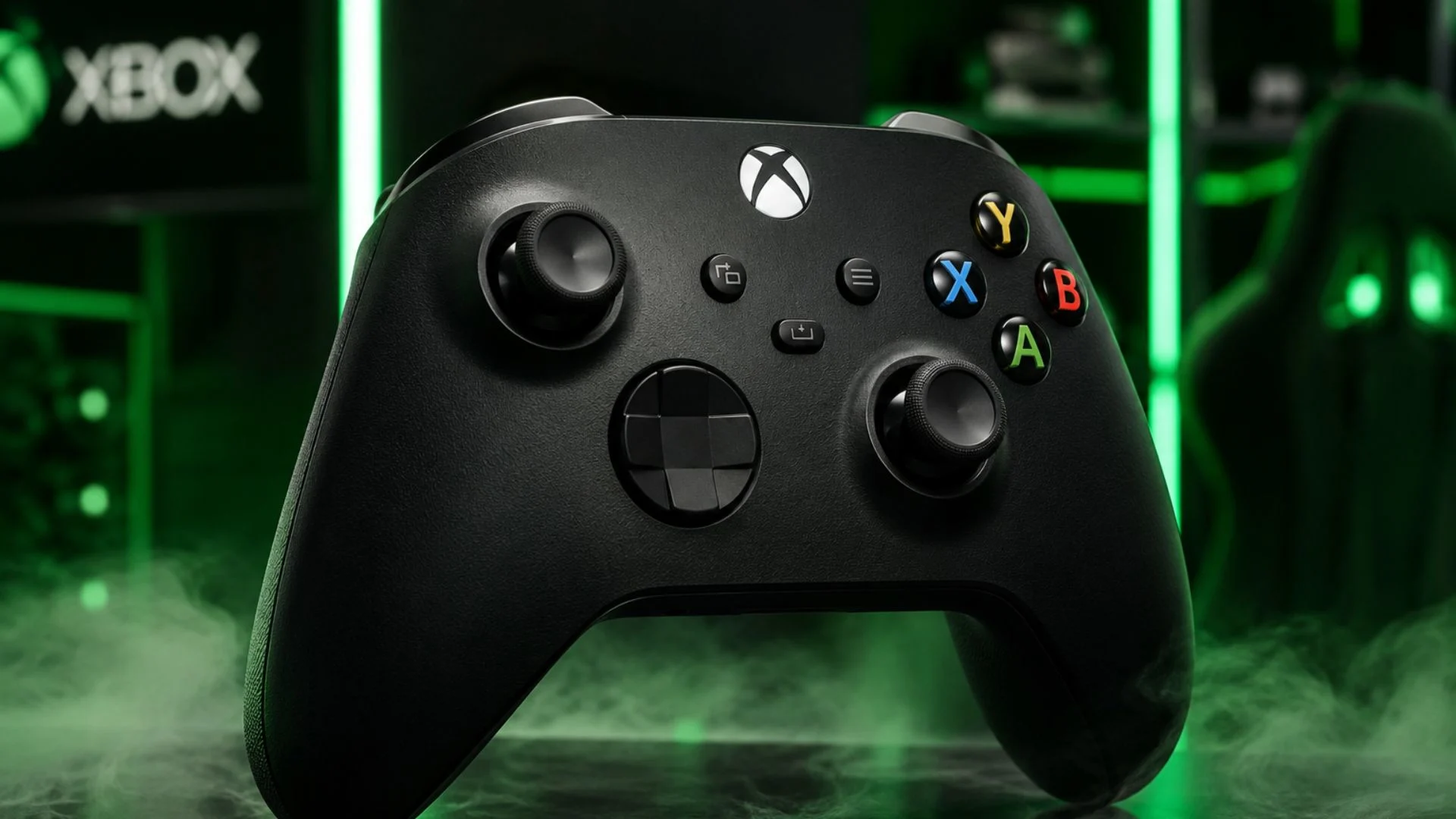
The modern Xbox Wireless Controller features sculpted surfaces that fit naturally in your hands. This refined controller shape reduces fatigue during long sessions.
Textured grips on the triggers, bumpers, and back case prevent slipping. When your hands get sweaty during intense moments, you maintain control. I’ve had controllers slip out of my hands during clutch moments. The textured grips solve this problem entirely.
The hybrid D-pad combines the classic cross shape with a disc design. This makes diagonal inputs in fighting games much more precise. You’ll notice the difference when executing special moves in Street Fighter or Mortal Kombat.
Weight matters too. At 9.8 ounces, the current controller is significantly lighter than older models. This reduces hand fatigue, letting you game for hours without discomfort.
I’ve spent entire weekends gaming with the latest controller. My hands didn’t cramp once. That’s a testament to how far ergonomics have improved.
Key Takeaway:
- Modern controllers are designed for comfort during extended gaming.
- Textured grips and improved weight distribution enhance performance.
The bottom line: good ergonomics aren’t just about comfort—they improve your gaming performance.
Fixing Common Controller Problems
Let’s solve the issues that drive gamers crazy.
Connection Failures to PC
If your controller won’t connect to your PC, check Bluetooth compatibility first. Original Xbox One controllers lack Bluetooth entirely. If yours doesn’t have Bluetooth, you need a USB cable or the Xbox Wireless Adapter.
When using a cable, try different USB ports. I’ve seen ports fail on older computers. Also verify your cable transfers data—some cheap cables only charge devices.
Unexpected Disconnections
Nothing ruins a gaming session like your controller randomly disconnecting.
Low batteries cause this constantly. Replace your batteries or charge your controller fully. Wireless interference from other devices can also cause problems. Move closer to your PC or console.
Stick Drift Frustration
This issue plagues standard controllers. Hall Effect sensors eliminate it, but if you have a standard controller, you can sometimes reduce drift by updating firmware through the Xbox Accessories app.
For permanent fixes, you’ll need a new controller. I’ve replaced three controllers due to stick drift over the years. It’s frustrating, but Hall Effect options make this problem obsolete.
Key Takeaway:
- Most problems stem from dead batteries or incompatible hardware.
- Firmware updates can fix some issues.
- Hall Effect controllers prevent stick drift permanently
The bottom line: simple fixes solve most issues, but Hall Effect controllers are the long-term solution.
Question: Can I use my Xbox controller with my phone?
Answer: Absolutely. The Xbox Wireless Controller has Bluetooth capability. Press the Pair button, then find it in your phone’s Bluetooth settings. Works with both Android and iOS devices.
Question: Which custom Xbox controller is best for competitive gaming?
Answer: The Razer Wolverine V3 Pro leads the pack with Hall Effect sticks and a 1000Hz polling rate on PC. For budget-conscious gamers, the GameSir G7 SE offers incredible value at $45.
Question: How do I update my Xbox controller?
Answer: Connect your controller via USB-C to your PC or Xbox. Open the Xbox Accessories app. The app automatically checks for and installs available updates.
Question: Why does my Xbox controller keep flashing?
Answer: A flashing Xbox button means your controller is in pairing mode. If it keeps flashing without connecting, restart your device and try the pairing process again.
Question: How long does the Xbox controller battery last?
Answer: With standard AA batteries, expect up to 40 hours. This varies based on usage, headset connections, and battery quality. Rechargeable packs offer convenient alternatives.
Conclusion and Final Thoughts
Choosing the right Xbox controller changes how you experience games. I’ve seen friends struggle with incompatible controllers and connection headaches. It doesn’t have to be complicated.
PC gamers need to understand their connection options. Wired gives you the lowest latency. Bluetooth offers convenience. The Wireless Adapter delivers premium performance.
Console gamers enjoy nearly automatic pairing. Fresh batteries and occasional restarts solve most issues.
For custom controllers, Design Lab provides professional options. DIY builds challenge tech enthusiasts. Hall Effect technology eliminates stick drift forever.
The best controller fits your hands comfortably. It should feature sculpted surfaces that support natural hand positioning. Long gaming sessions should leave you feeling good, not cramped.
Bottom Line: Xbox controllers in 2026 offer incredible options for every gamer. Whether you’re connecting to PC, customizing your dream controller, or hunting for the best performance, there’s a perfect choice waiting for you. Now stop reading and start playing.
References
- PCBWay. (2026). DIY Xbox Controller Project Documentation.
- Xbox Official Site. (2026). Xbox Design Lab Customization Options.
- Microsoft Learn. (2025). Xbox Controller Connectivity Guide.
- CNET. (2026). Best Gaming Controllers Review.
- Razer Official Site. (2026). Wolverine V3 Pro Specifications.
Read More: Xbox Game Pass
About the Author